Bluetooth Pairing
This guide explains how to pair a Bluetooth playback device in Mackey Hall. Use Bluetooth when you want to play audio from a phone, tablet, or laptop without plugging in an audio cable.
If the sound system is not on, see Turning the Sound System On.
What to Expect
Bluetooth has two parts:
- Pair your device with the room receiver named
DN-200BR. - Unmute and raise the
Bluetoothchannel in the iPad audio controls.
Pairing alone does not guarantee sound. The Bluetooth channel must also be active in the room controls.
Start Pairing Mode (Two Ways)
Method 1: From the Audio Page
- On the wall touchscreen Homepage, press
Audio.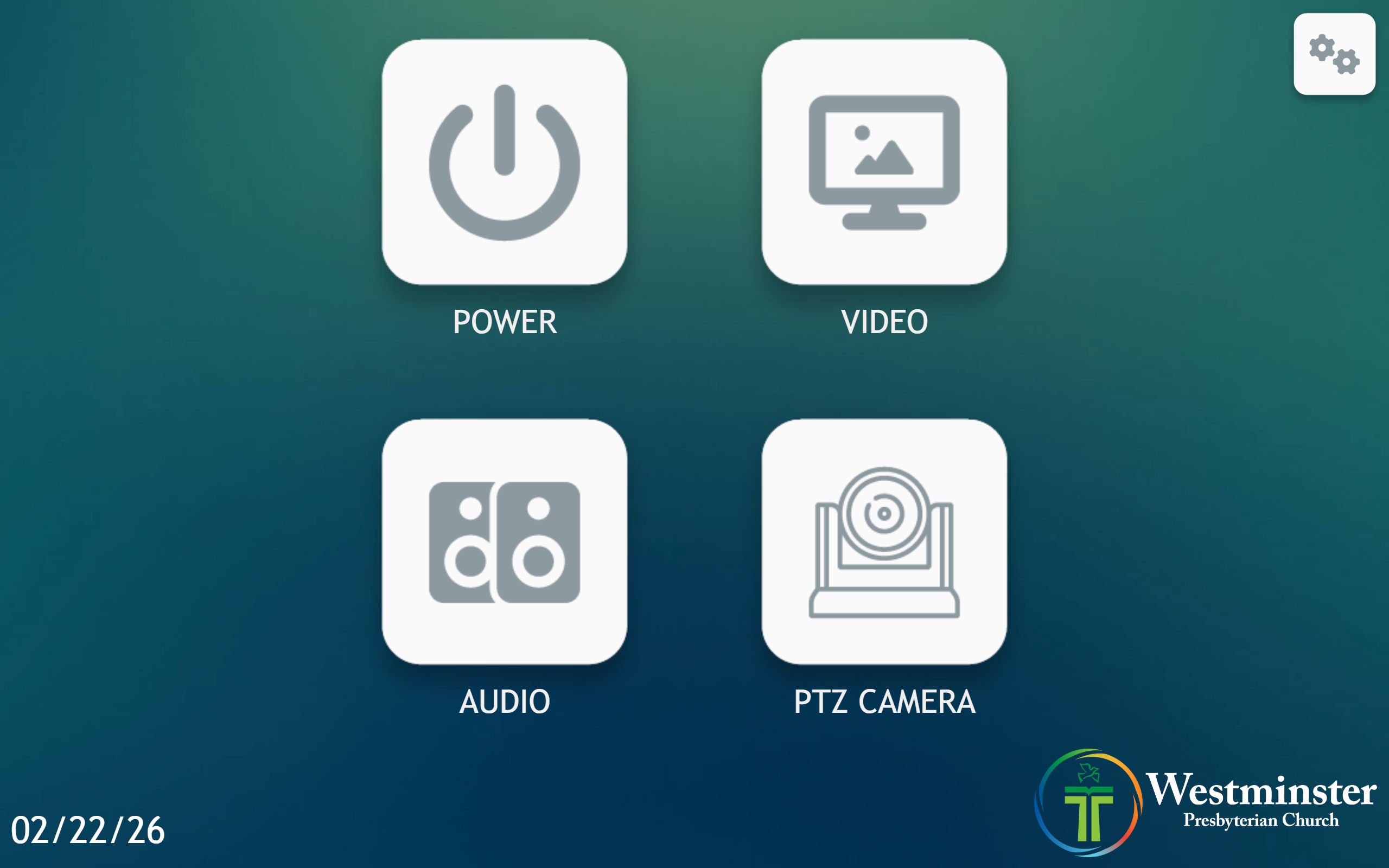
- On the Audio page, press
Bluetooth Pair.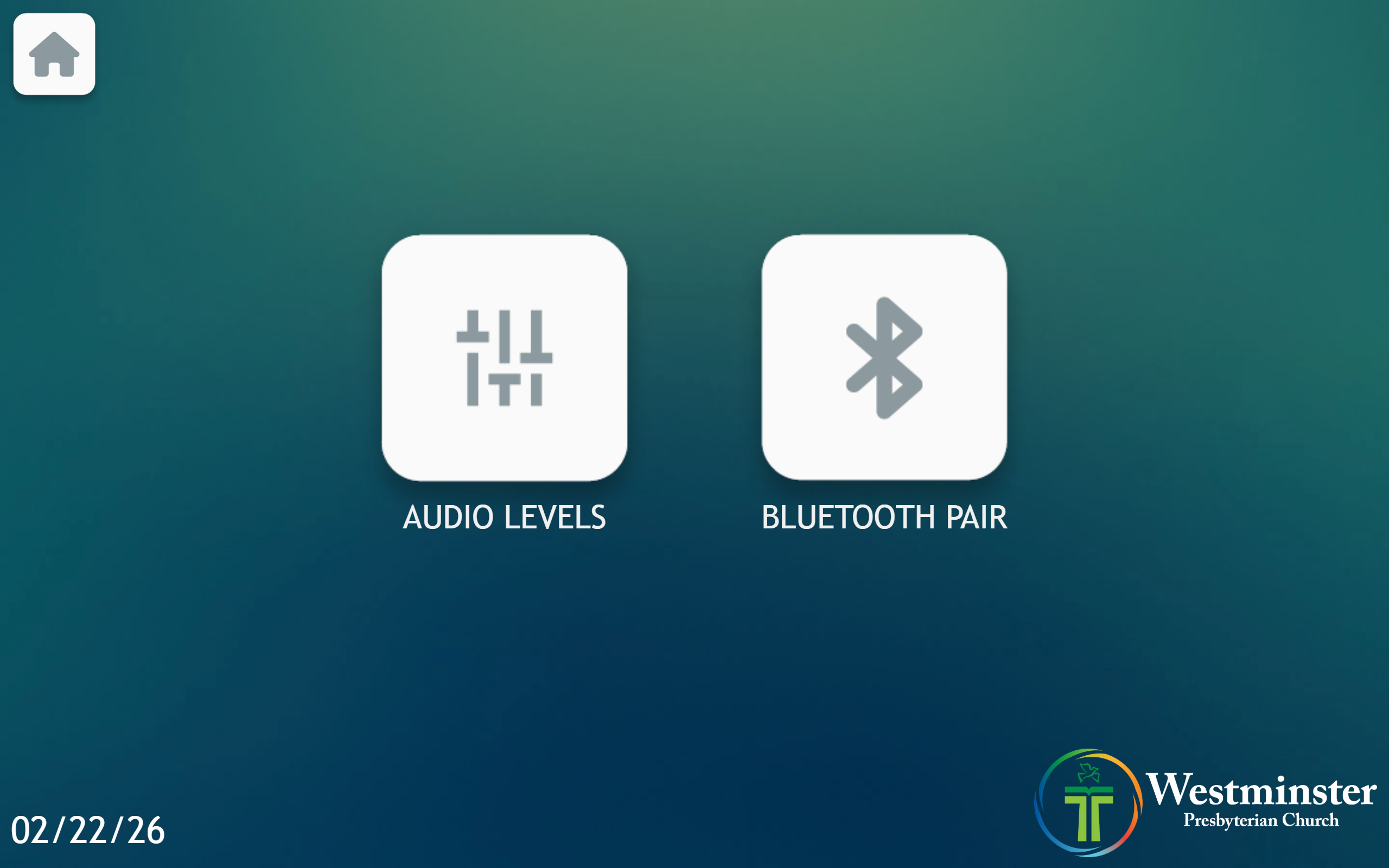
- Wait a few seconds for pairing mode to activate.
- If room speakers are unmuted, you should hear a beep when pairing mode starts.
Method 2: From Audio Levels -> Computer + Bluetooth Inputs
- On Select a Preset, choose
Computer + Bluetooth Inputs. - On that page, press
Bluetooth Pairing. - Wait a few seconds for pairing mode to activate.
- If room speakers are unmuted, you should hear a beep when pairing mode starts.
Connect Your Device
- On your phone, tablet, or computer, open Bluetooth settings.
- Select
DN-200BRfrom available devices. - Confirm the device shows as connected.
- Start playback on your device.
Route Bluetooth Audio to Speakers
- On the wall touchscreen Audio page, press
Audio Levels. - On Select a Preset, choose
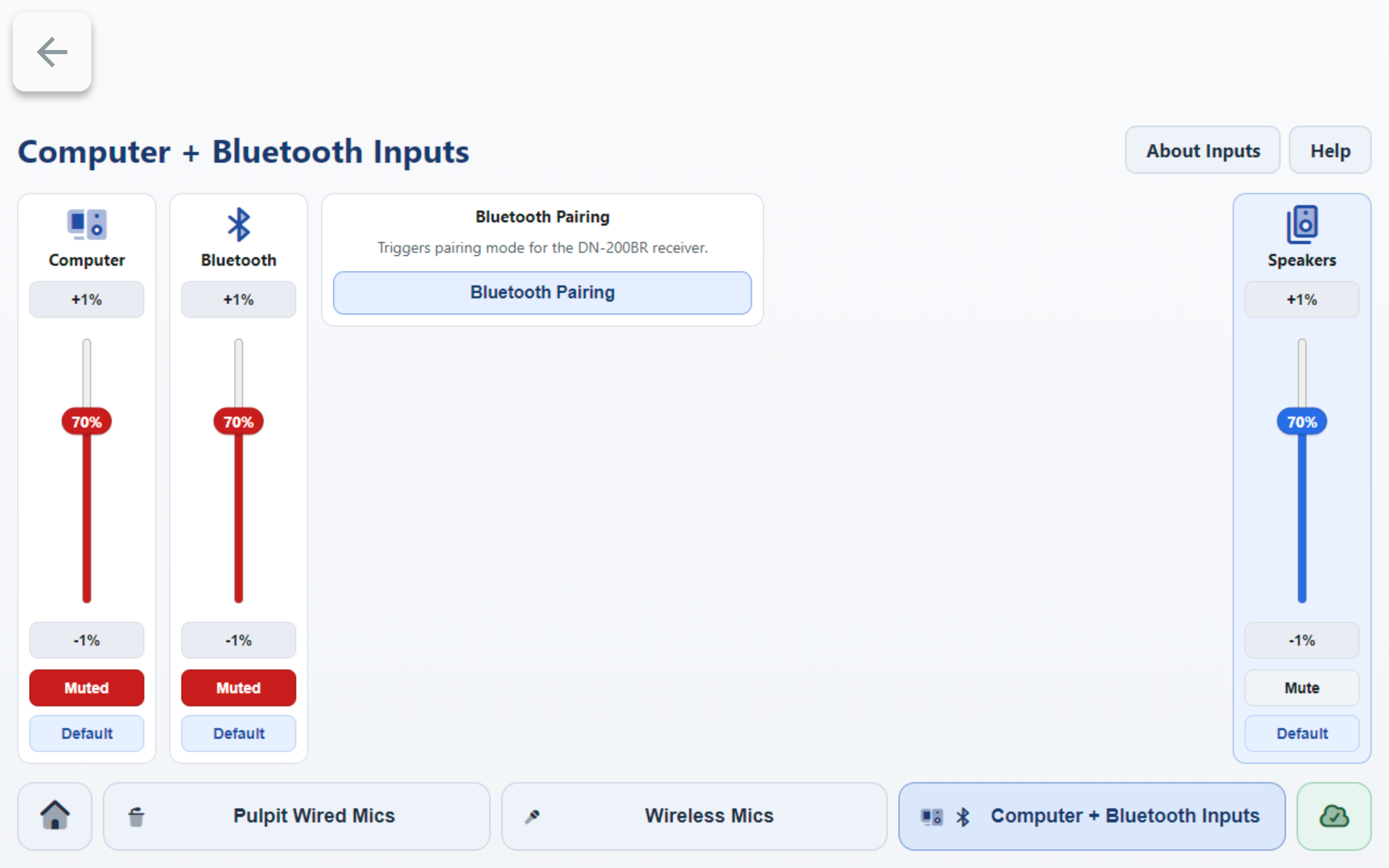
Computer + Bluetooth Inputs. - In that preset, find the
Bluetoothchannel card. - If
Mutedis red, press it once to unmute. - Start playback and adjust
Bluetoothlevel with+1%,-1%, or the slider. - Use the
Speakerscard on the right (Master Output) for overall room output level.
Notes
- Pairing is for playback devices only.
- If pairing fails, press
Bluetooth Pairagain and retry from Bluetooth settings. - Only one device should be connected for the event. Disconnect old devices if the wrong device is playing.
If You Do Not Hear Bluetooth Audio
- Confirm your device is connected to
DN-200BR. - Confirm your device is playing audio and its volume is turned up.
- Confirm the
Bluetoothchannel is unmuted inComputer + Bluetooth Inputs. - Confirm
Master Outputis high enough for the room. - If your device will not connect, turn Bluetooth off and back on, then press
Bluetooth Pairagain.