Turning Projector / Rear TV Off
This guide explains how to power off the projector and rear TV in Mackey Hall using the wall touchscreen. Use this during shutdown so the display equipment is not left running after an event.
If you need the reverse process, see Turning Projector / Rear TV On.
Before You Start
- Stop the presentation or video first.
- If you used the projector screen, turn off the projector before retracting the screen.
- The projector may take about 30 seconds to finish shutting down.
Power Off Projector
- Go to the wall touchscreen in Mackey Hall.
- If you are not on the Homepage or the
Powerpage, press theHomeicon in the top-left corner. - If you are on the Homepage, press
Powerto open the power controls. If you are already on thePowerpage, continue to the next step.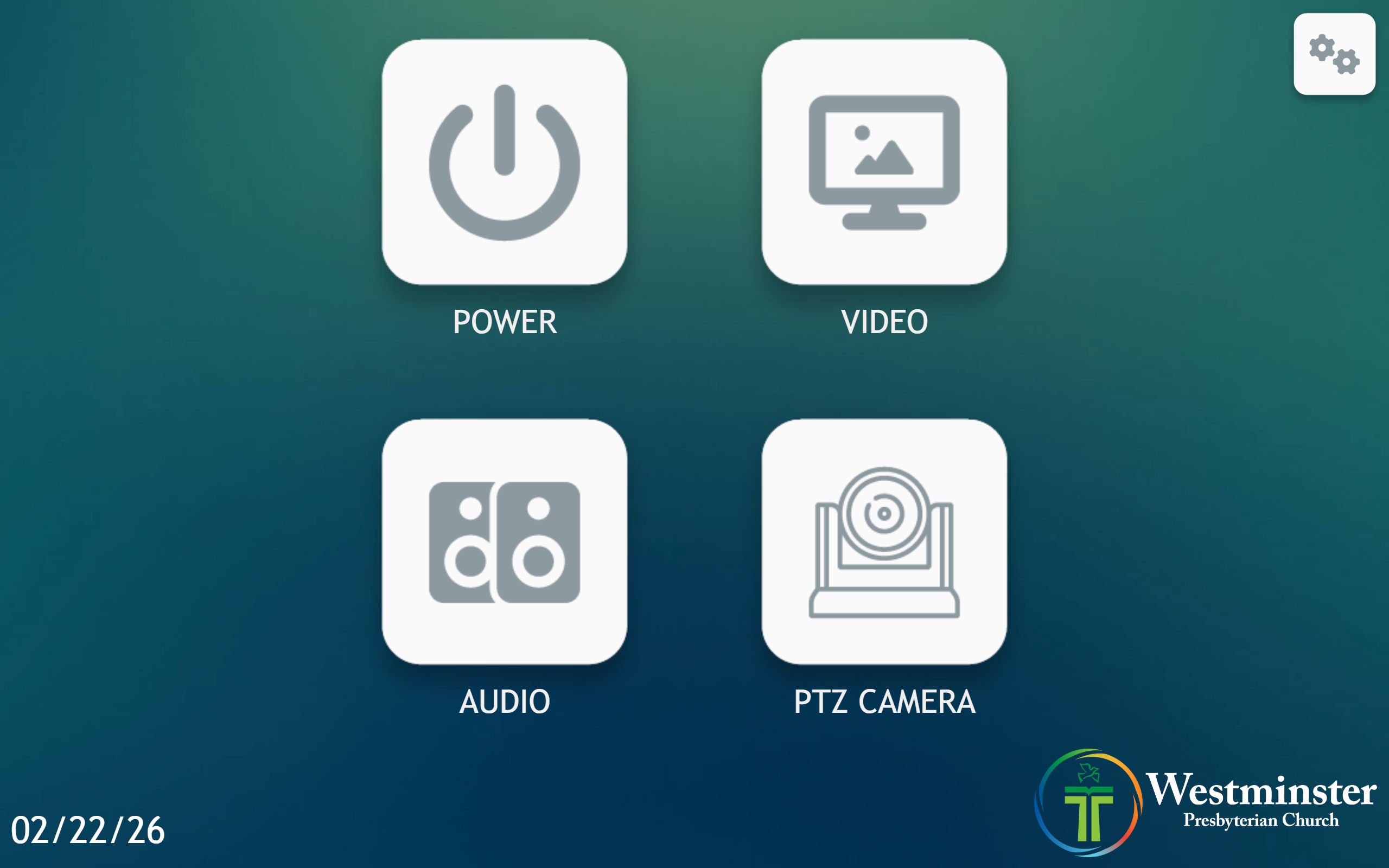 Press the
 Powerbutton on the homepage. - On the Power page, press
Projector Offto power off the projector.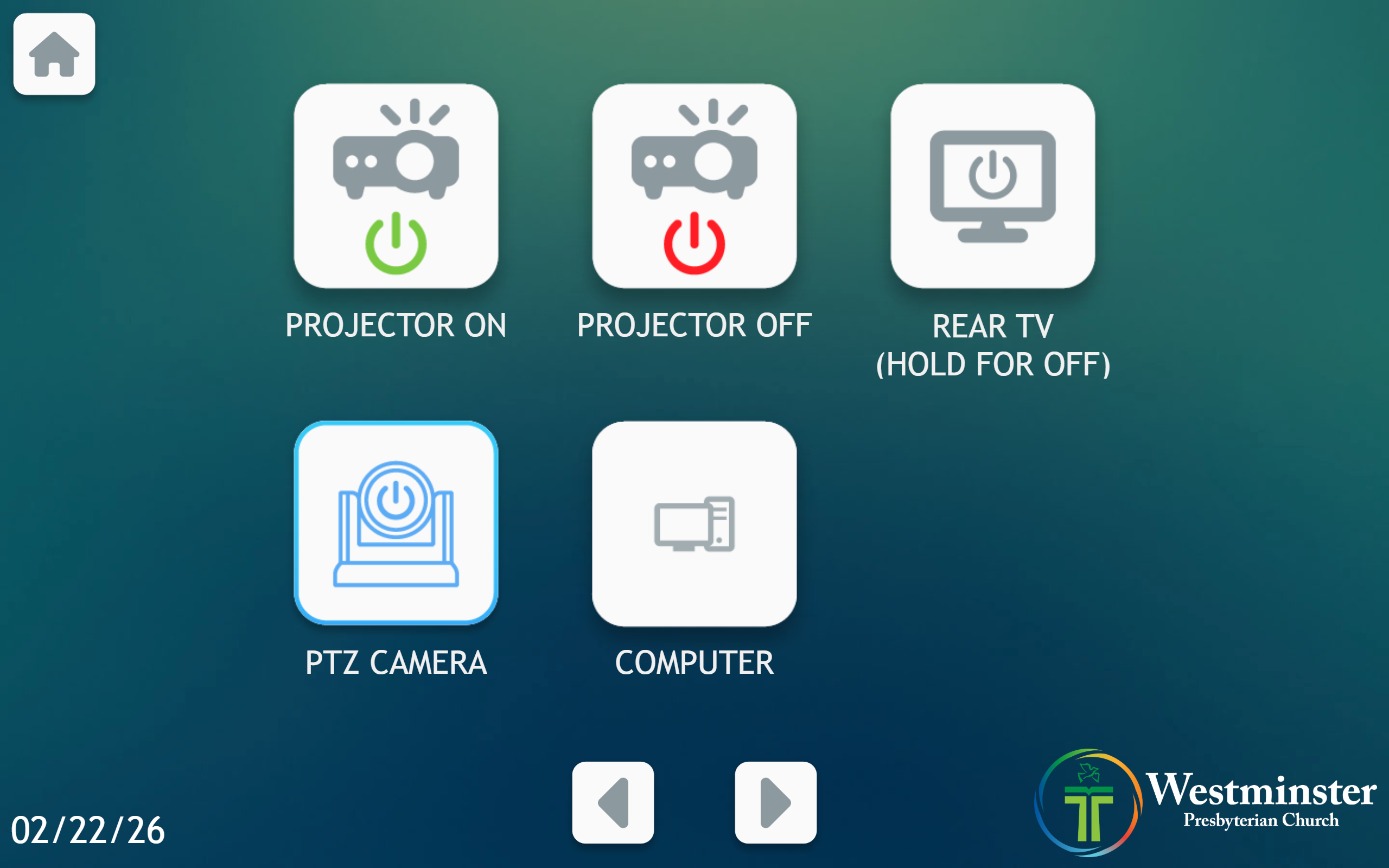 Press
Press Projector Offto power off the projector. - Allow about 30 seconds for the projector to fully shut down.
Power Off Rear TV
- Go to the wall touchscreen in Mackey Hall.
- If you are not on the Homepage or the
Powerpage, press theHomeicon in the top-left corner. - If you are on the Homepage, press
Powerto open the power controls. If you are already on thePowerpage, continue to the next step.
Press the Powerbutton on the homepage. - On the Power page, press and hold
Rear TVfor a few seconds to power off the rear TV.
Press and hold Rear TVfor a few seconds to power off the rear TV. - Wait a few seconds for the rear TV to fully power off.
Shutdown Check
- If the projector screen was lowered, retract it after the projector is off.
- Disconnect personal devices and return any borrowed cables.
- If audio was used, mute or lower channels on the iPad before leaving.