Using Audio Controls
This guide explains how to use the iPad touchscreen audio controls in Mackey Hall.
If the sound system is not on, see Turning the Sound System On.
What the iPad Controls Do
The iPad chooses which audio sources are active and how loud they are in the room. A source can be connected correctly and still be silent if its channel is muted or turned down.
Key Terms
- Preset: A saved group of controls for a common setup, such as wired pulpit microphones or wireless microphones.
- Channel: One audio source, such as
Lapel,Computer, orBluetooth. - Muted: The channel is intentionally silent. Red
Mutedmeans no sound will pass for that source. - Master Output: The overall speaker level for the room.
Get Control iPad
Locate the control iPad, which is housed in a black freestanding case. It is typically positioned on top of the sound system rack.
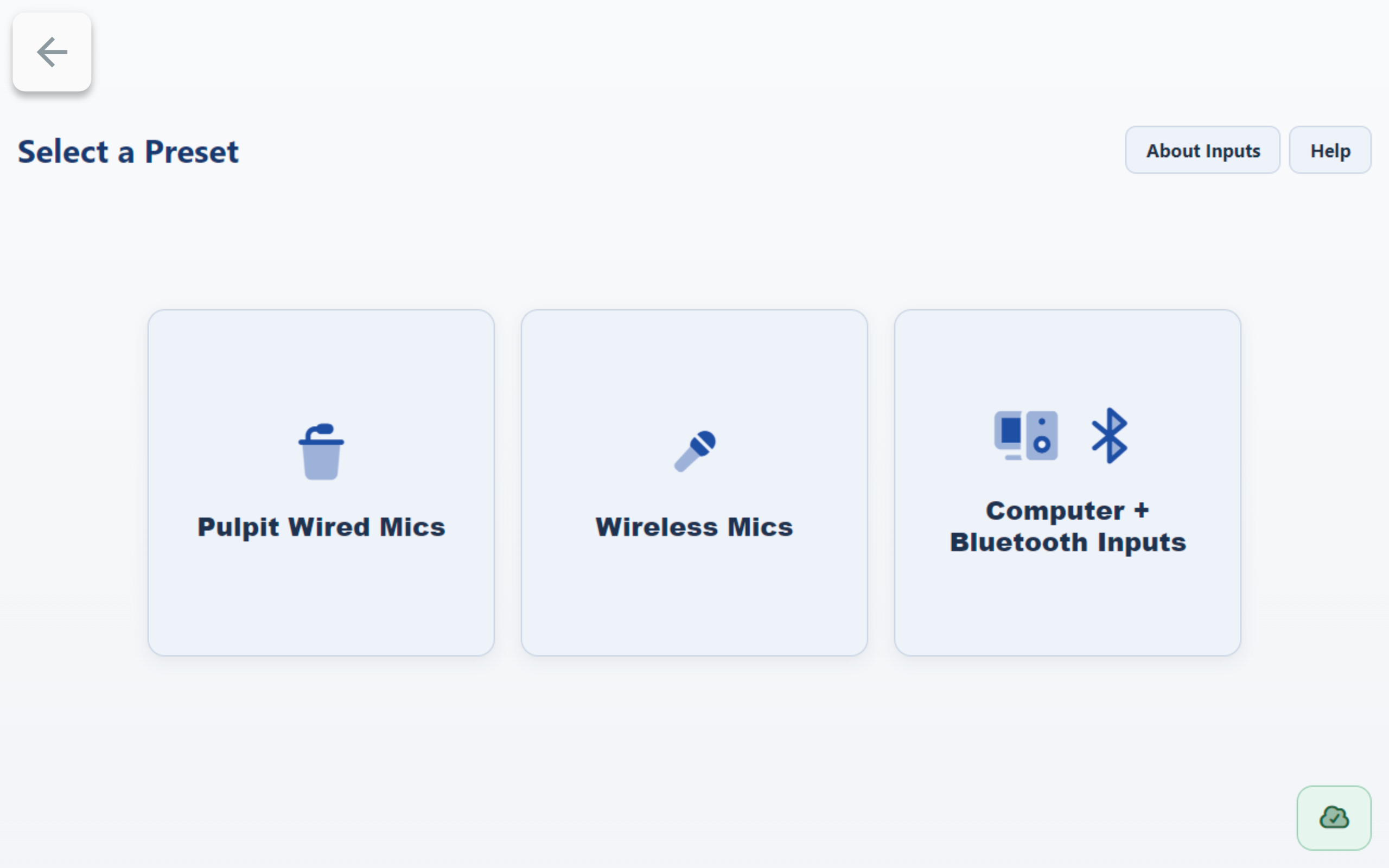
Select a Preset
- On the Select a Preset screen, choose the preset you need:
Pulpit Wired MicsWireless MicsComputer + Bluetooth Inputs
Adjust Channel Levels
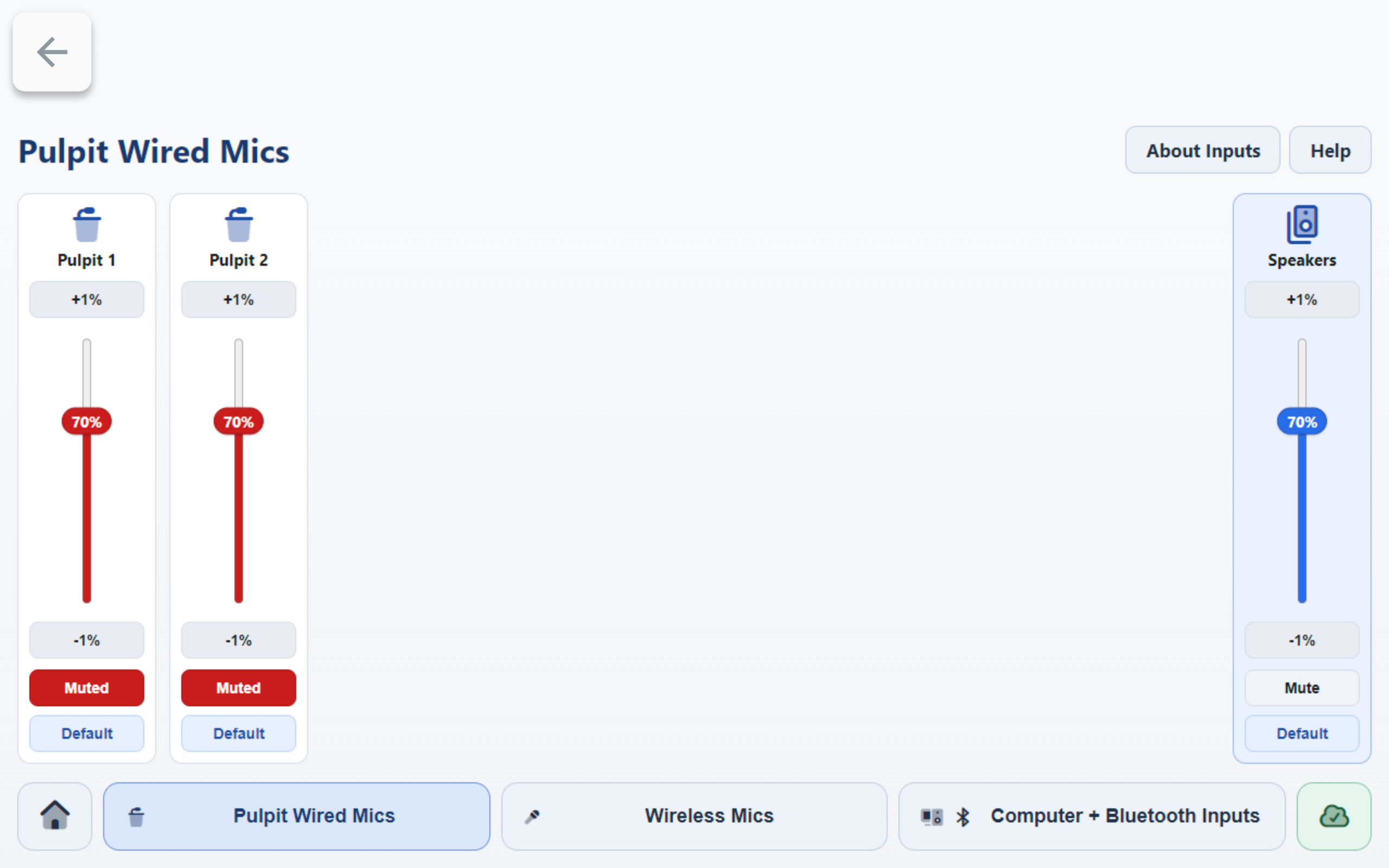
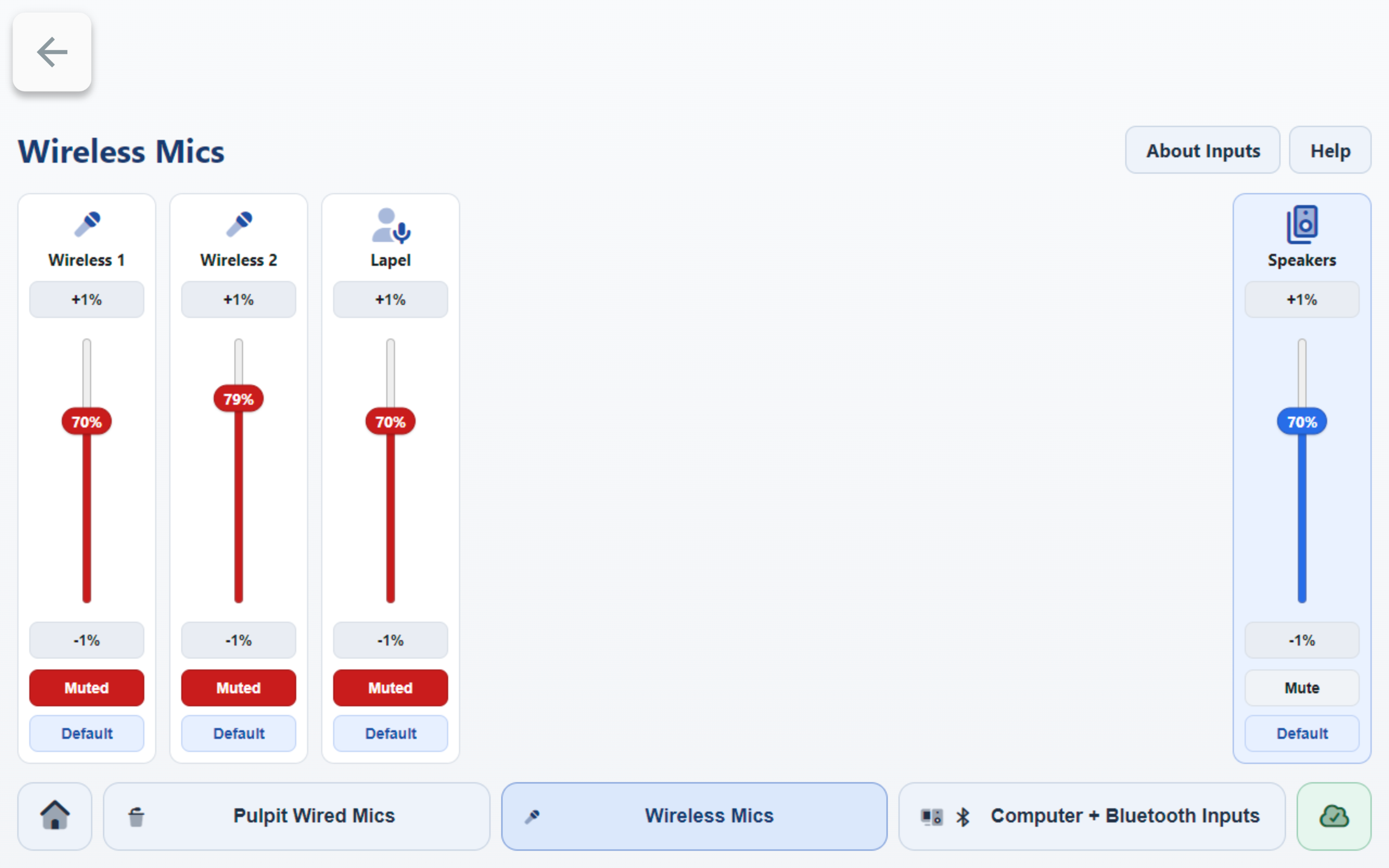
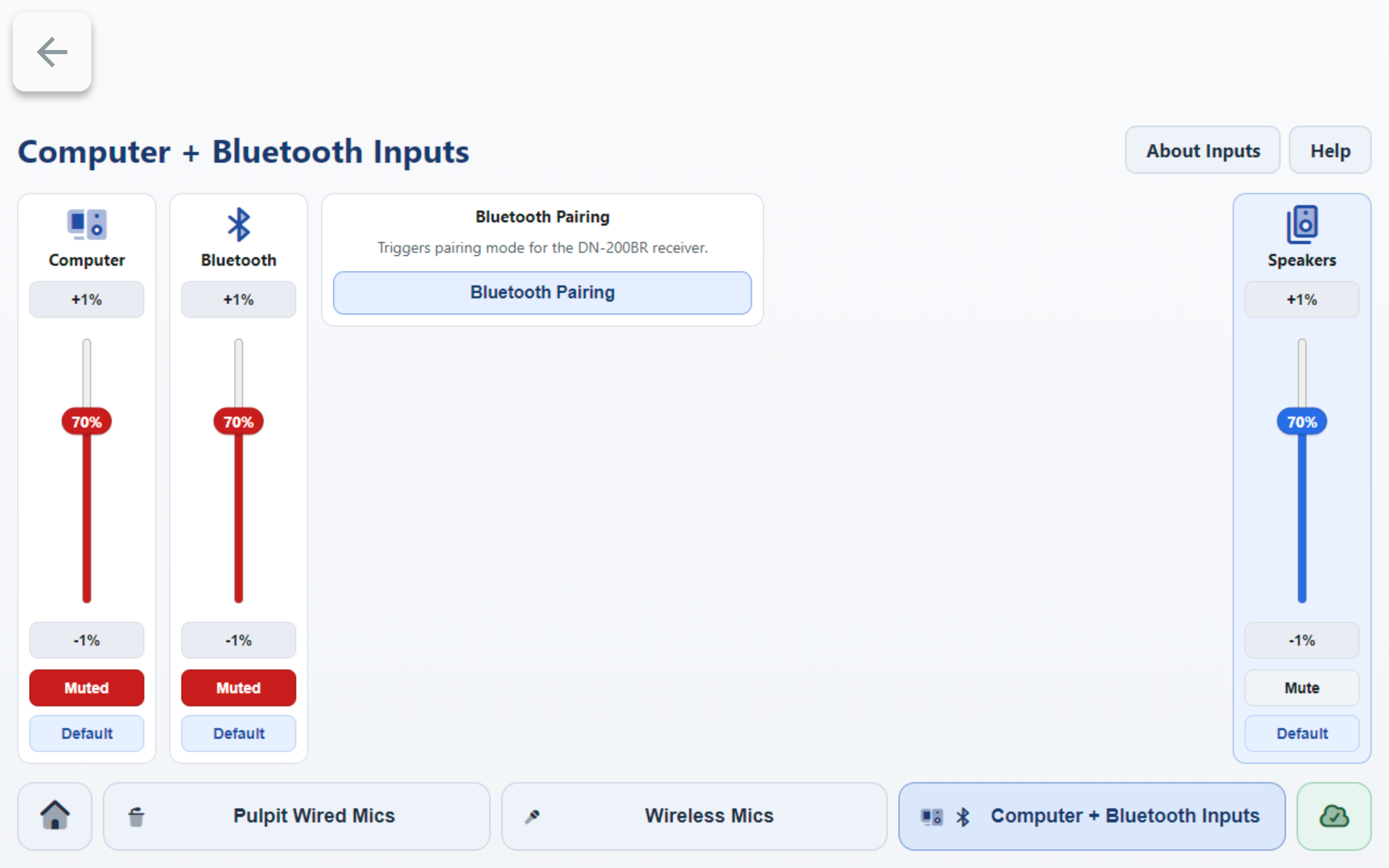
- Find the channel card you want to adjust.
- If a channel shows
Mutedin red, that channel is muted and no audio will pass. - Press
Mutedonce to unmute the channel. - Use
+1%,-1%, or the slider to set the channel level. - Use the
Speakerscard on the right (Master Output) for overall room output level. - Make changes gradually. A small increase on a microphone can be enough.
Helpful On-Screen References
- Press
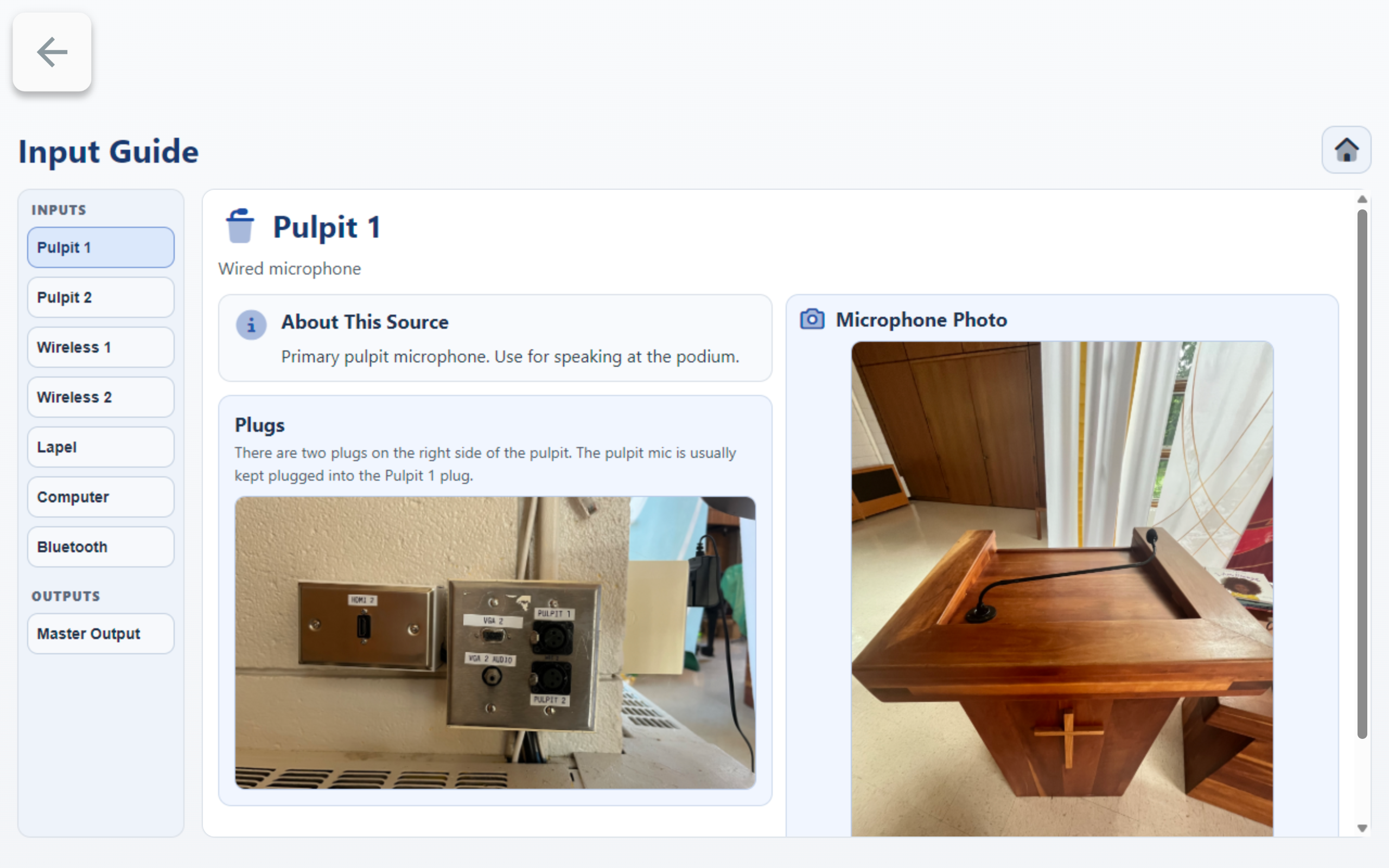
About Inputsfor source and connection reference details. - Press
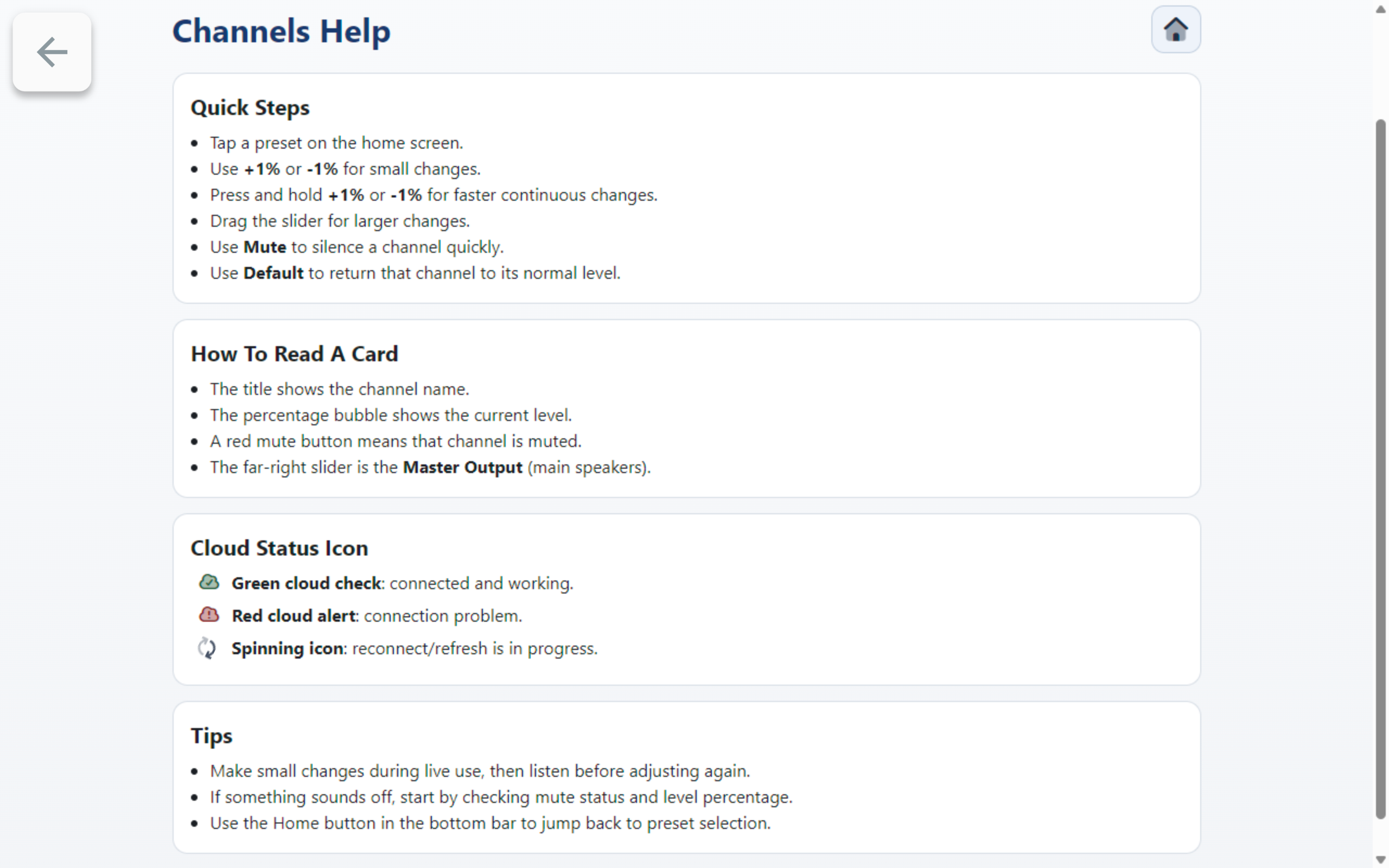
Helpfor quick control tips (+1%,-1%, hold to ramp, Mute/Unmute, and Default level behavior). - On
Help, a redMutedbutton means that channel is muted.
If You Do Not Hear Sound
- Confirm the sound system is on.
- Confirm you selected the preset that matches what you are using.
- Confirm the specific channel is unmuted.
- Confirm
Master Outputis not turned all the way down. - For microphones, speak into the microphone while adjusting the level.
- For computer or Bluetooth audio, start playback on the device and confirm the device volume is up.