Turning the Sound System On
This guide explains how to verify and turn on the Mackey Hall sound system. Do this before using microphones, computer audio, or Bluetooth audio.
If the system is already on, no changes are needed.
At a Glance
- The rack power switch should be lit red.
- The amplifier power button should be lit blue.
- After both are on, use the iPad audio controls to choose what you want to hear.
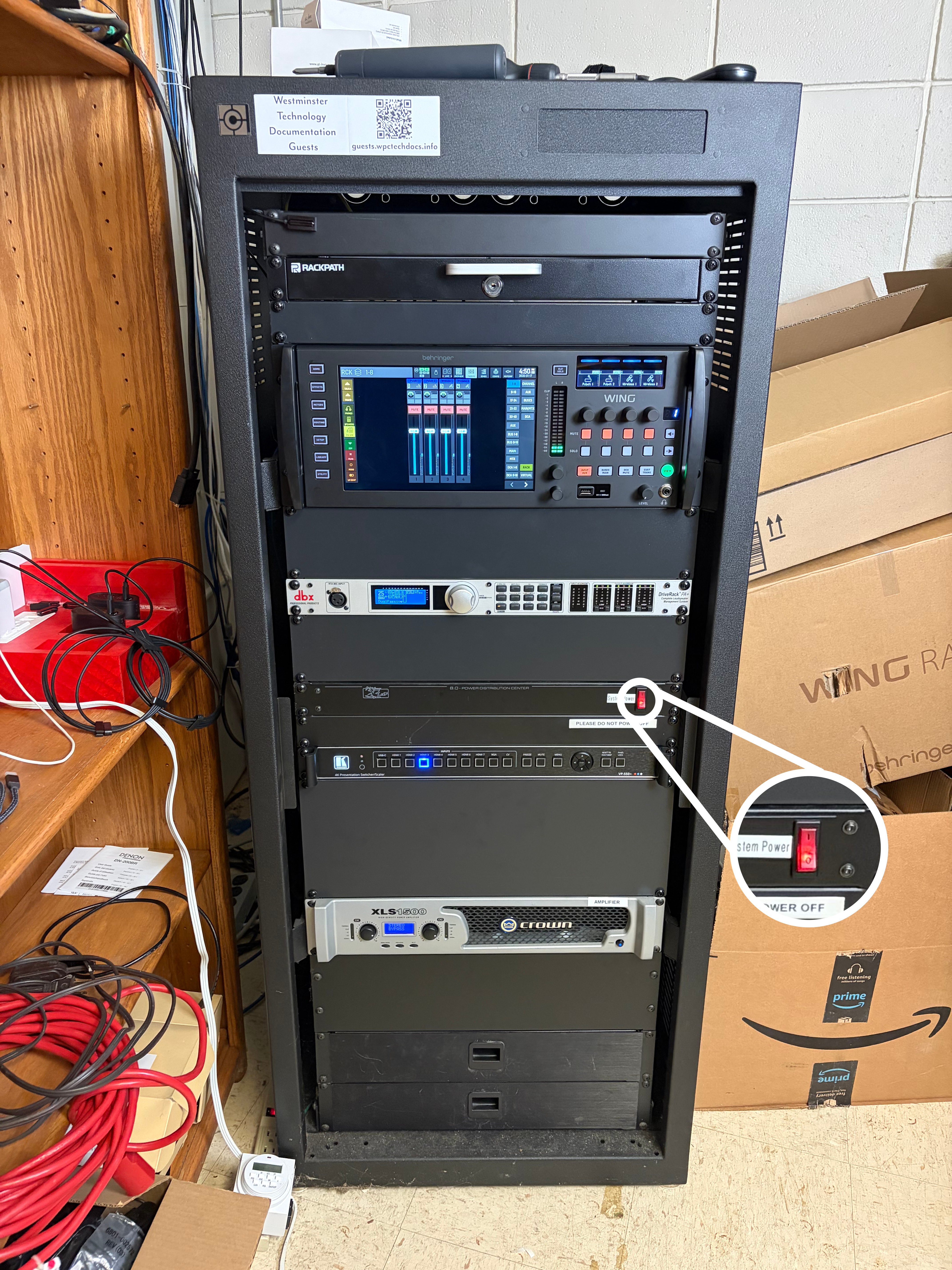
Check Rack Power
- Go to the sound system rack.
- Find the red
Powerswitch on the rack. - If the switch is not lit red, turn it on. If it is already lit, leave it as-is.
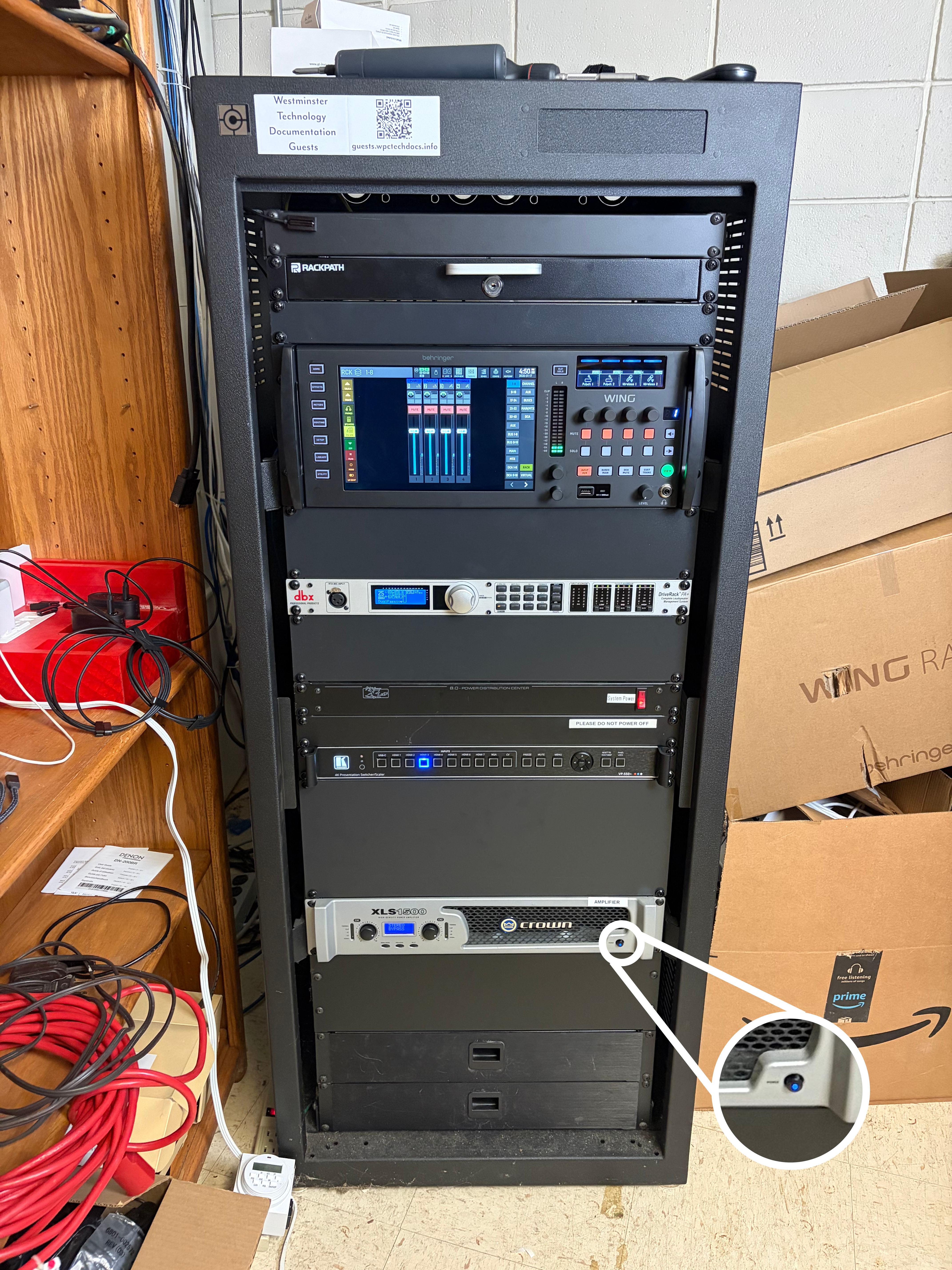
Check Amplifier Power
- Locate the amplifier in the rack (third unit from the bottom).
- Press the amplifier power button at the bottom-right.
- Confirm the button lights blue, which means the amplifier is on.
Sound System Ready
When the rack power is on and the amplifier power button is blue, the sound system is ready for microphones, computer audio, and Bluetooth audio.
If You Still Do Not Hear Sound
- Make sure the iPad audio controls are on the right preset.
- Make sure the channel you need is not muted.
- Raise the channel level gradually, then raise the
SpeakersorMaster Outputlevel if needed. - If using a computer or Bluetooth device, make sure the device volume is also turned up.
Technical Note
The rack power supplies the sound equipment. The amplifier drives the room speakers. Both need to be on before the iPad controls can send audio through the room.