Computer Input Methods
This guide explains how to connect devices in Mackey Hall and switch video sources from the wall touchscreen. Use this after the projector or rear TV is on.
What This Means
The room has several wall ports. The touchscreen tells the projector and rear TV which port to show. The label on the wall port should match the button you choose on the touchscreen.
Best Choice for Most Guests
Use HDMI 1 or HDMI 2 if your laptop or adapter supports HDMI. HDMI usually carries both picture and sound through one cable.
Connecting Devices
- Locate the input ports on the wall outside the Scout Closet, under the projector screen, and by the sound system/chair closet wall.
- Connect your device to the matching labeled port.
- On the touchscreen, select the input that matches the port label you used.
- If you need sound, confirm the sound system is on and the right audio channel is unmuted.
Switching Inputs on the Touchscreen
- Go to the wall touchscreen in Mackey Hall.
- If you are not on the Homepage or the
Videopage, press theHomeicon in the top-left corner. - If you are on the Homepage, press
Videoto open input controls. If you are already on theVideopage, continue to the next step.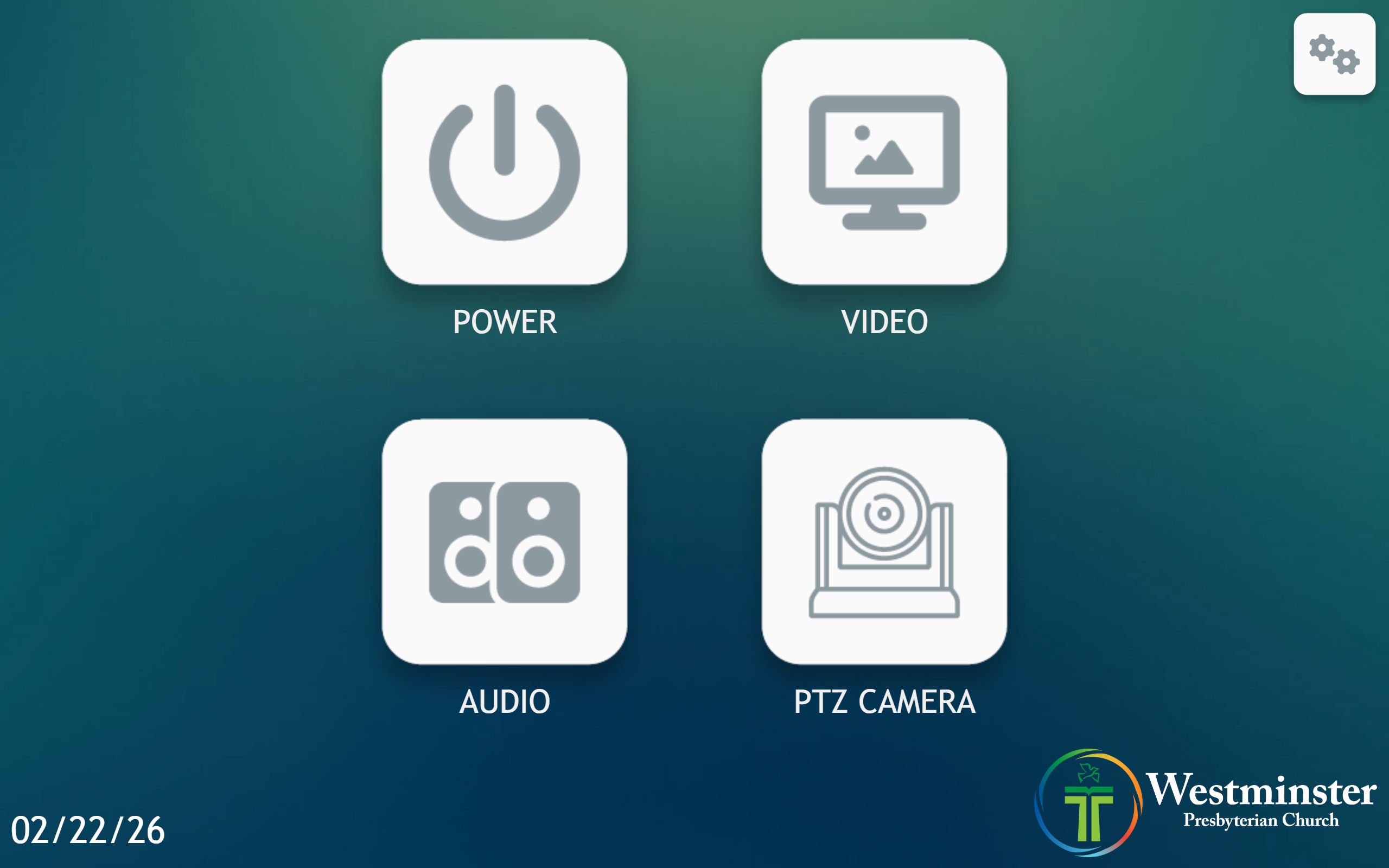 Press
Press Videoon the homepage to open input controls. - On the first
Videopage, press the input button that matches your connected port. - The selected source will light up blue when it is active.
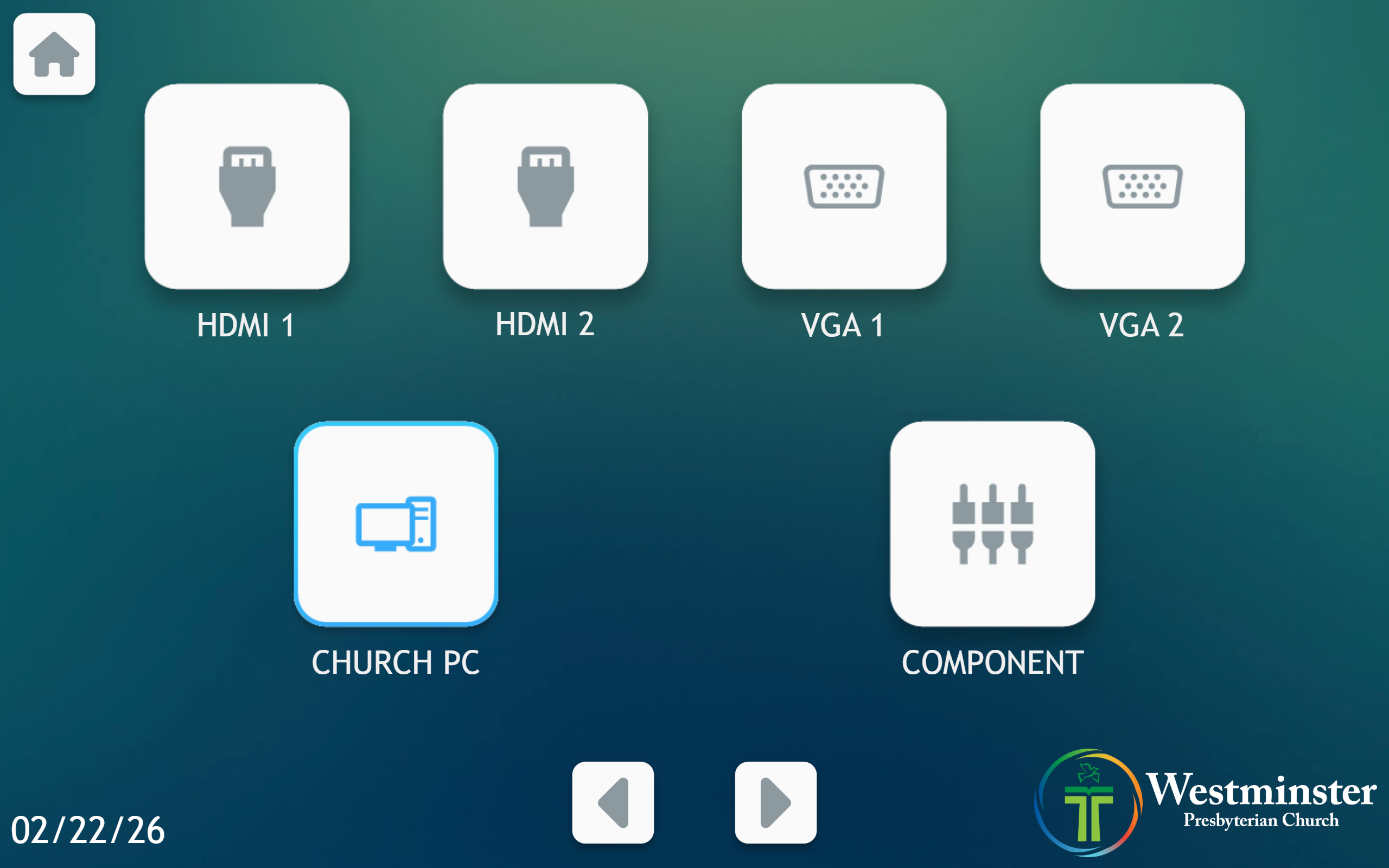 Select the input that matches your connected port label.
 - Use the left/right arrows at the bottom to move between Video pages.
- On the second
Videopage, useFreezeto pause the current image orBlankto black out the screens.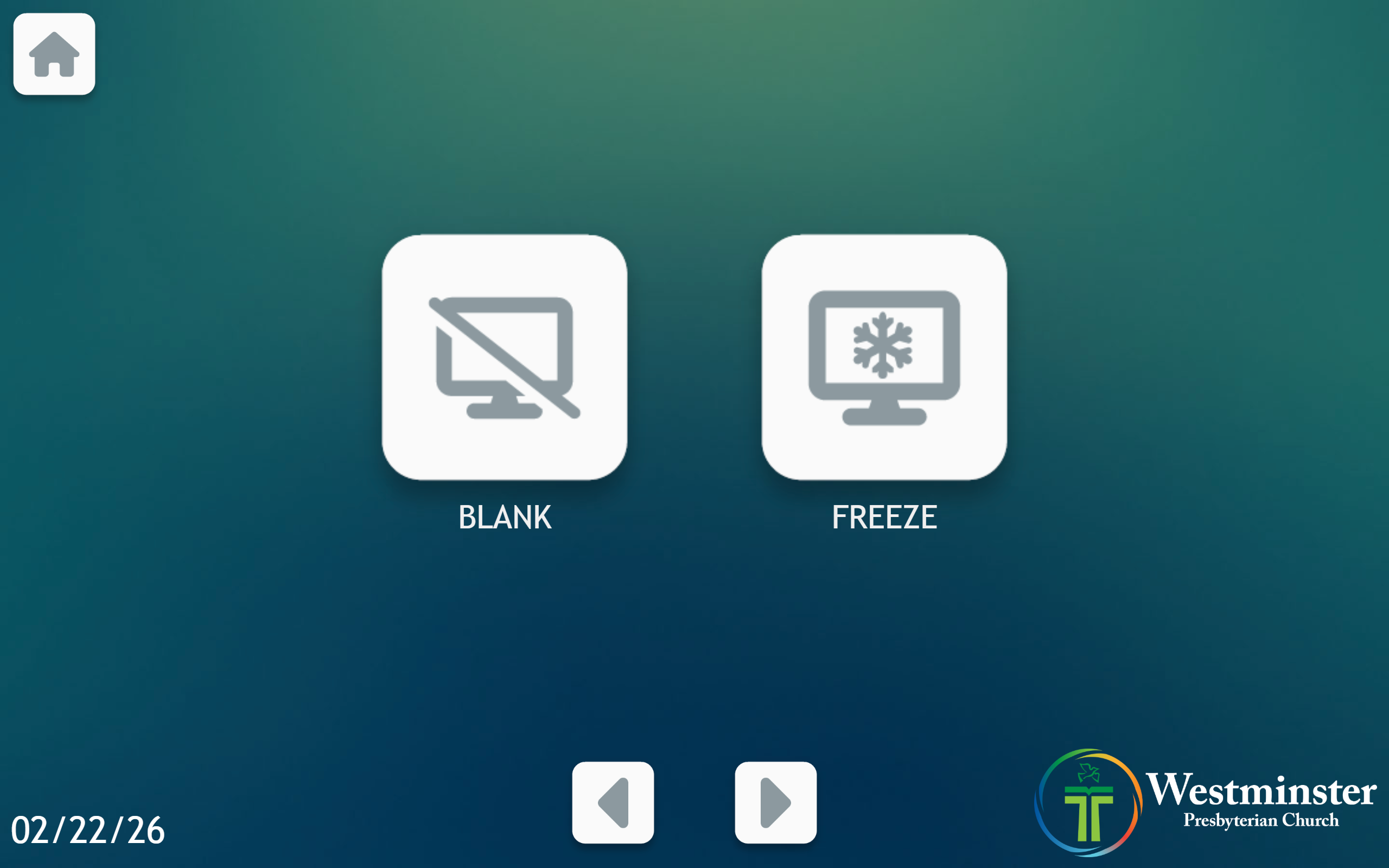 Use the bottom arrows to switch pages.
 FreezeandBlankare on the second Video page.
Input Methods
HDMI Inputs
Mackey Hall has three HDMI inputs:
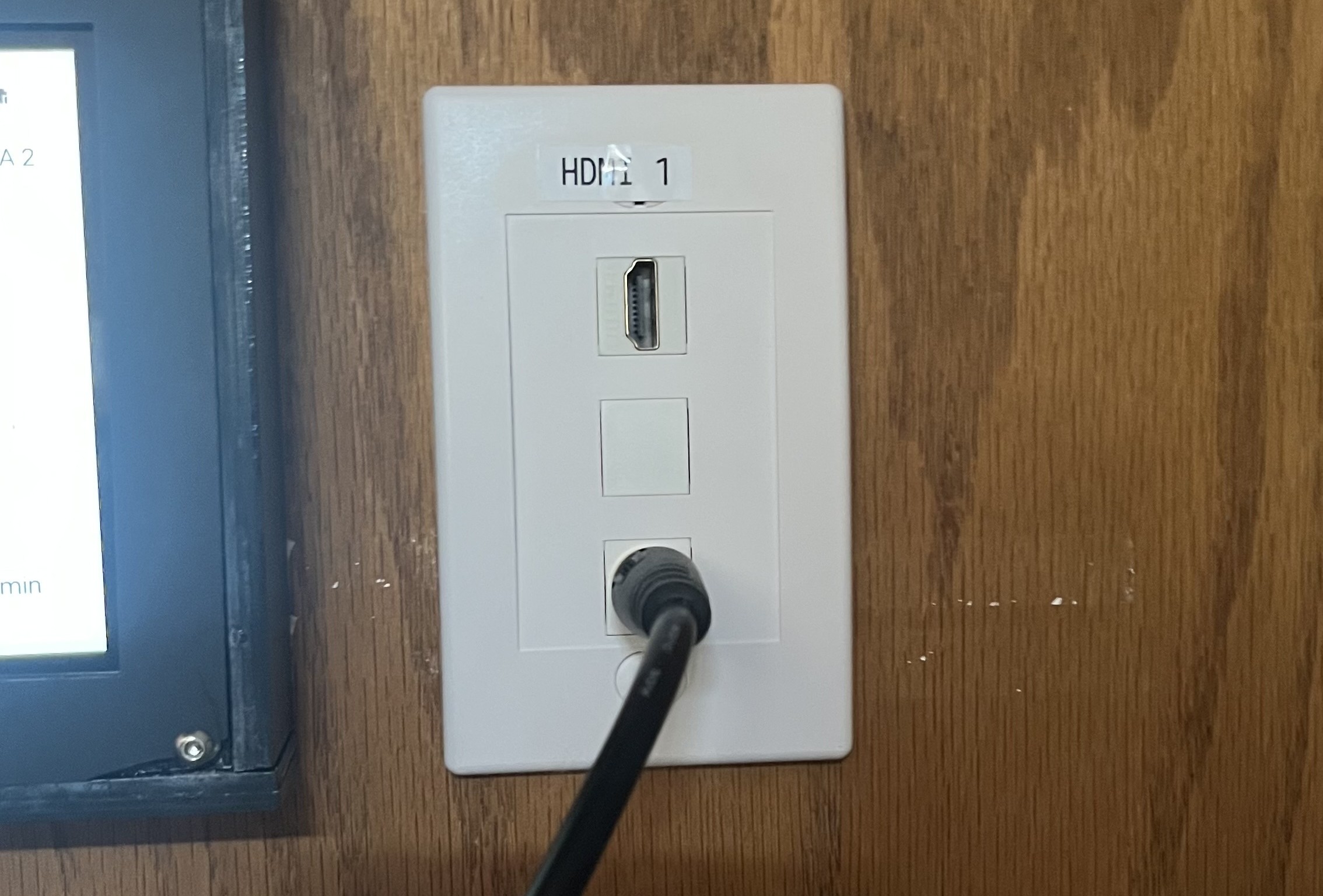
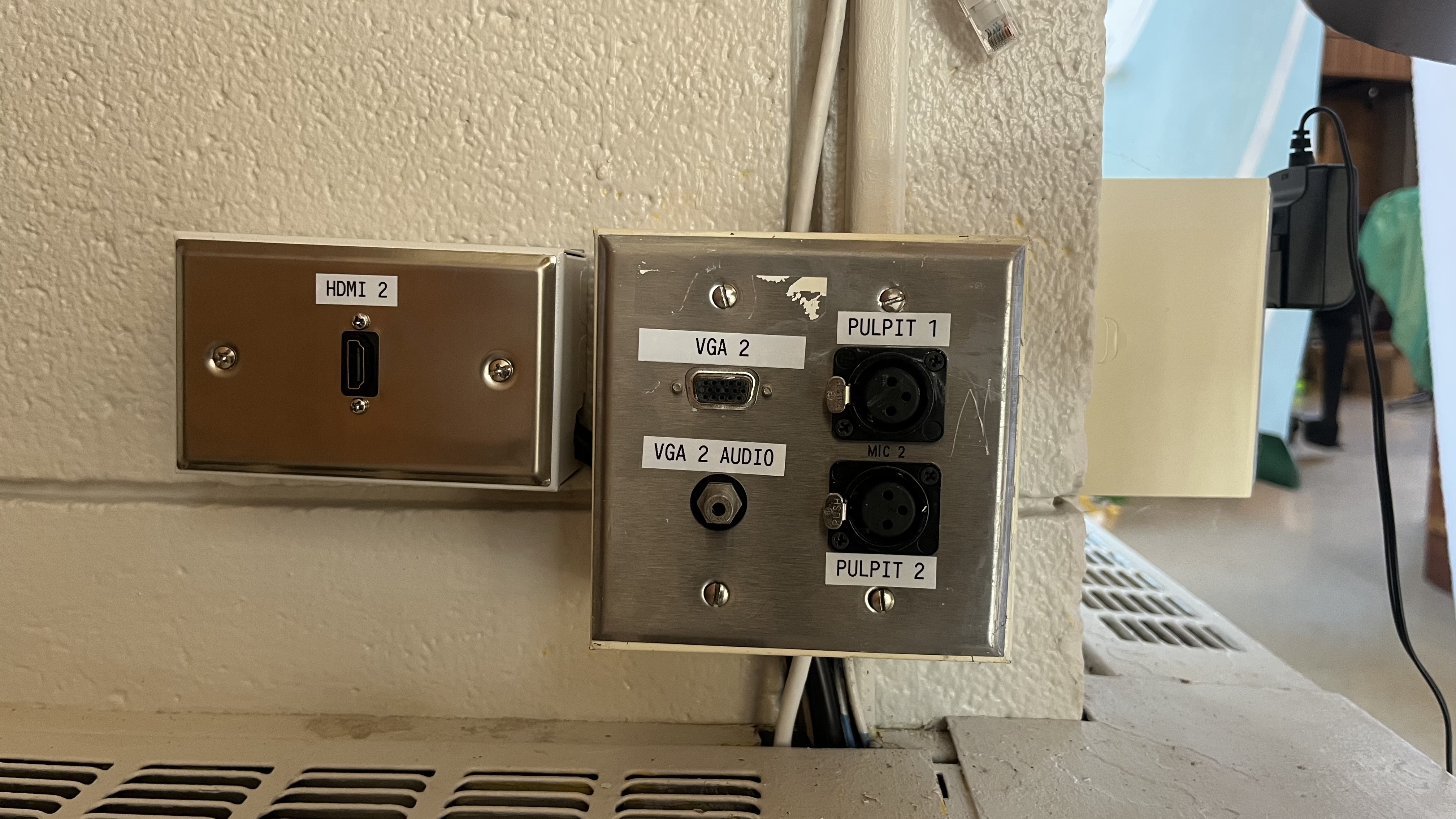
Church PC HDMI: Located with the VGA and RCA ports under the input selector panel. Reserved for the Church PC.HDMI 1: Located near the control touchscreen for personal devices.HDMI 2: Located on the wall outside the Scout Closet, under the projector screen, for personal devices.
HDMI carries both video and audio over one cable.
Church PC HDMI Input
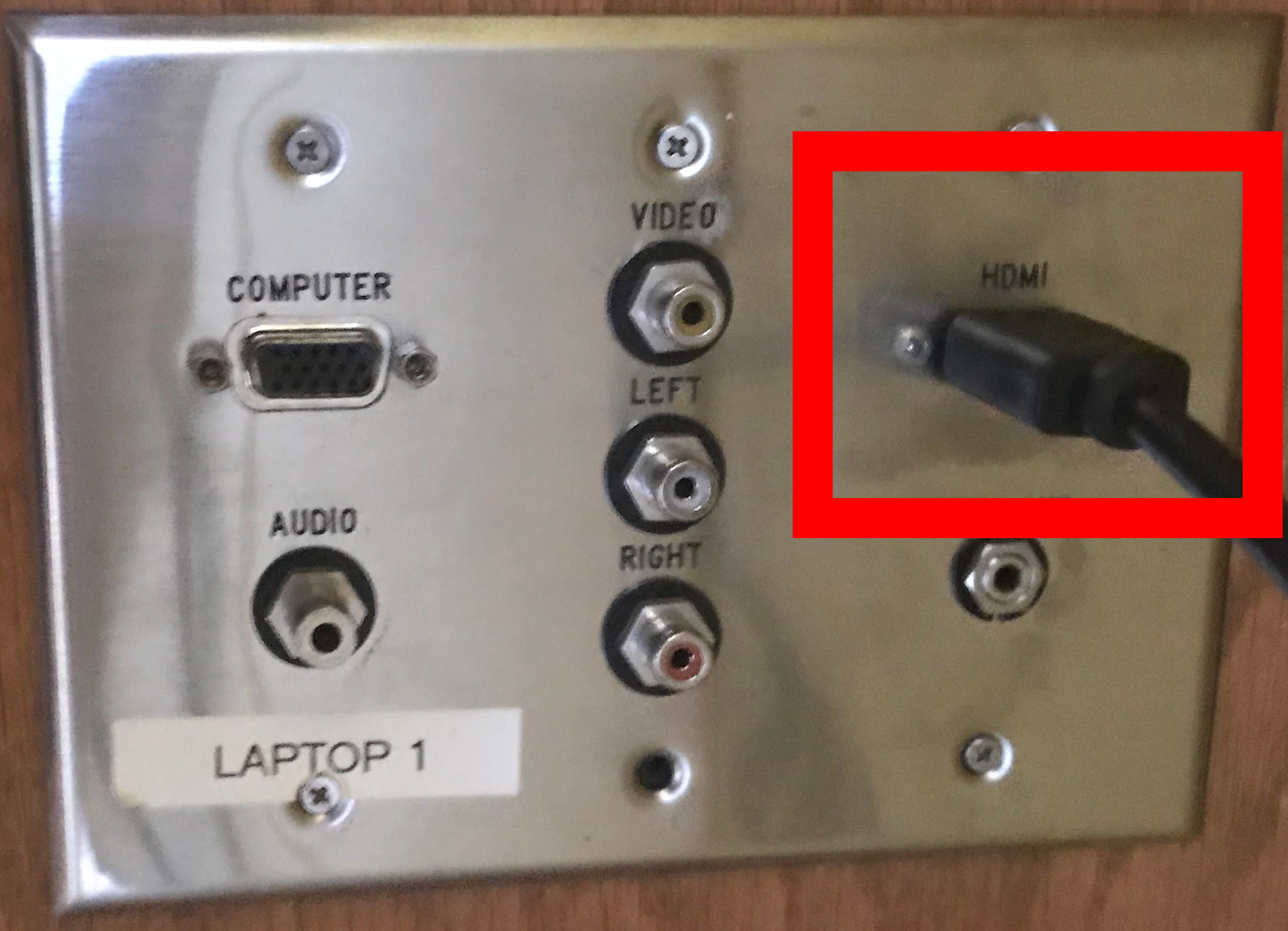
HDMI 1 Input
HDMI 2 Input
VGA Inputs
There are two VGA input locations in Mackey Hall:
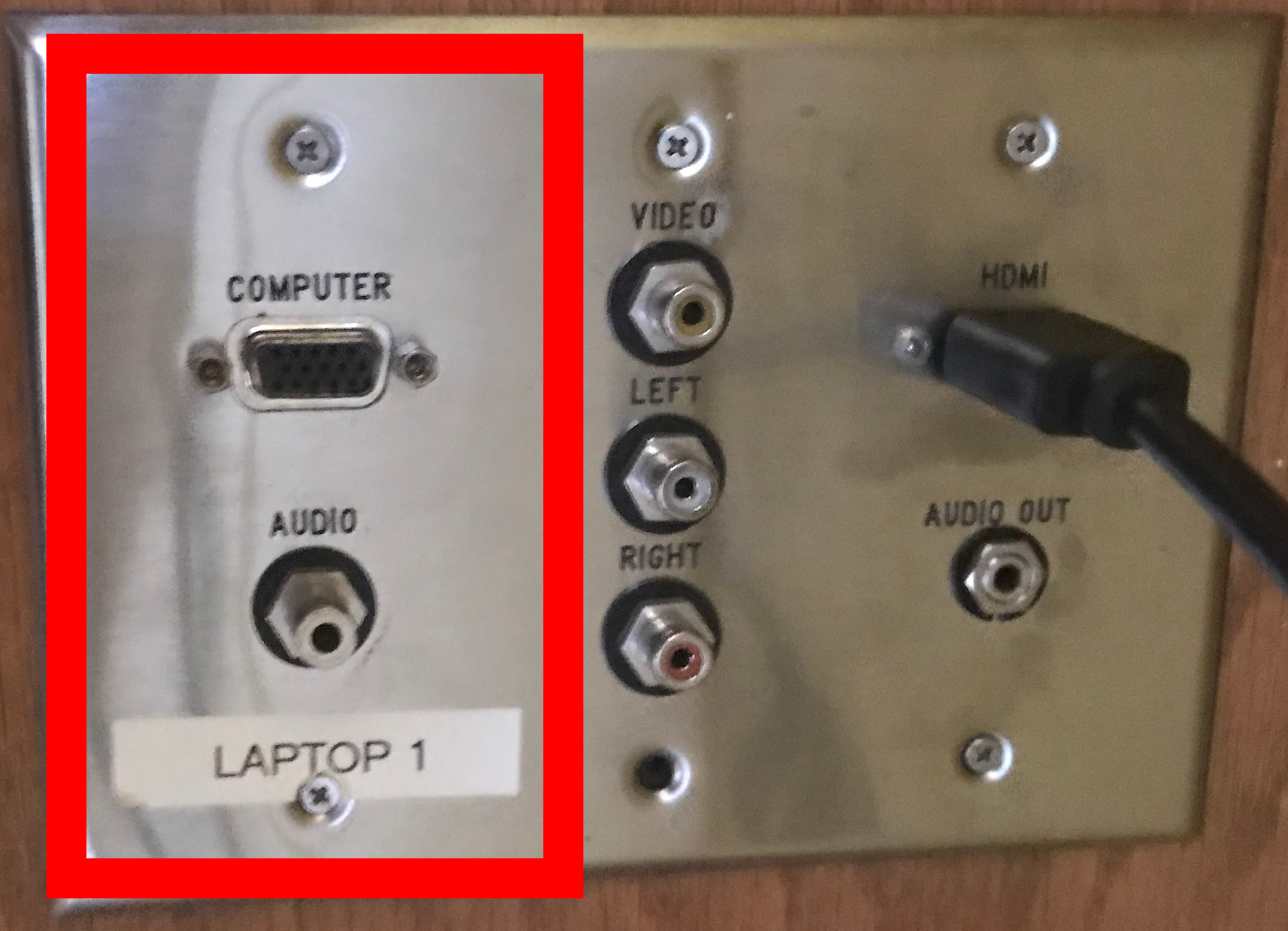
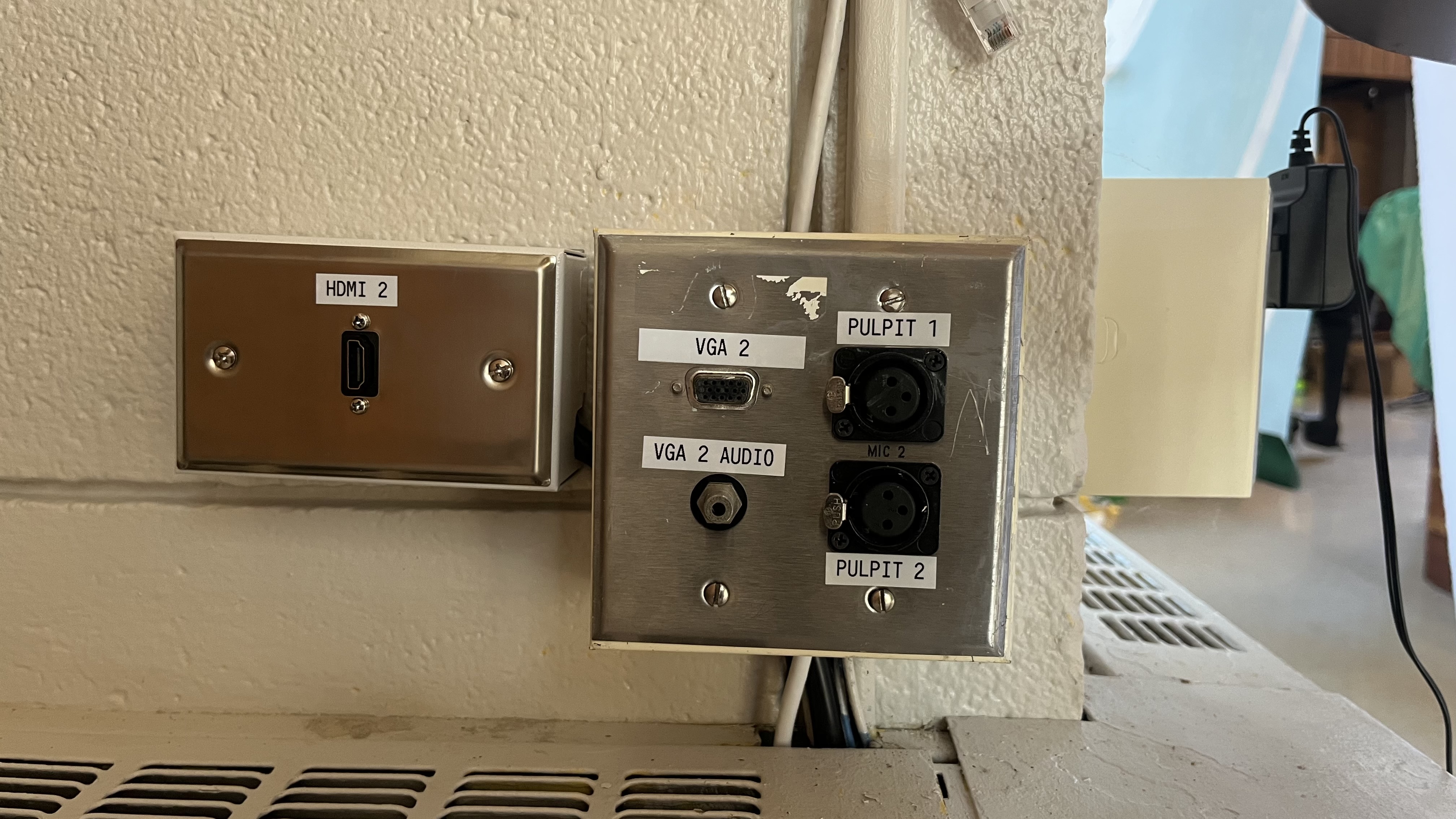
Laptop 1 (VGA): Under the input selector panel with its matching 3.5mm audio port.Laptop 2 (VGA): On the wall outside the Scout Closet, under the projector screen, with its matching 3.5mm audio port.
VGA is an older computer video connection. It requires two cables for full picture and sound:
- VGA for picture.
- 3.5mm audio for sound.
Laptop 1 Input
Laptop 2 Input
RCA Input
There is one RCA input under the input selector panel.
- Yellow: video
- White/Red: left/right audio
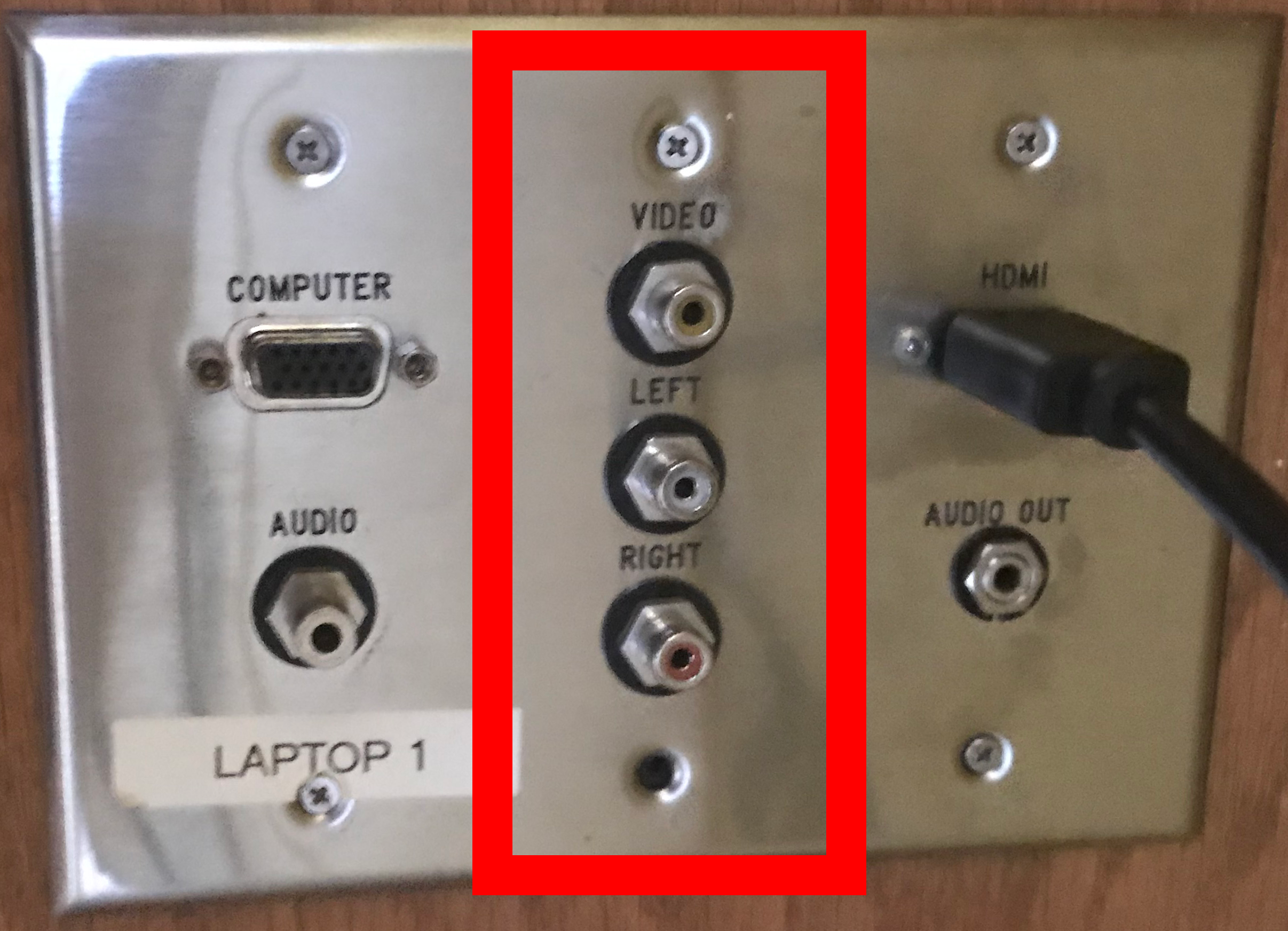
RCA is usually used for older equipment. Most laptops should use HDMI instead.
If You Do Not See or Hear Anything
- Make sure the projector or rear TV is powered on.
- Make sure the selected touchscreen input matches the wall port label.
- Check that your device is awake and sending video to an external display.
- If you have picture but no sound, open Using Computer Audio.
- If you are using VGA, make sure the separate 3.5mm audio cable is connected.