Using Computer Audio
This guide explains how to play audio from a computer in Mackey Hall. Use this when you want sound from a laptop, the Church PC, or another connected computer to play through the room speakers.
If the sound system is not on, see Turning the Sound System On.
Before You Start
- Connect video first if you are showing slides or video.
- HDMI usually carries picture and sound together.
- VGA only carries picture, so it also needs a 3.5mm audio cable for sound.
- The computer volume and the room audio controls both affect what people hear.
Connect Your Computer
- Connect your computer using one of these methods:
HDMI(carries video and audio together)3.5mm audiocable (audio only)
- If you are also using video, choose the cable type that matches your selected video input.
- For port locations, see Input Methods.
Open Audio Levels
- On the Select a Preset screen, press
Computer + Bluetooth Inputs.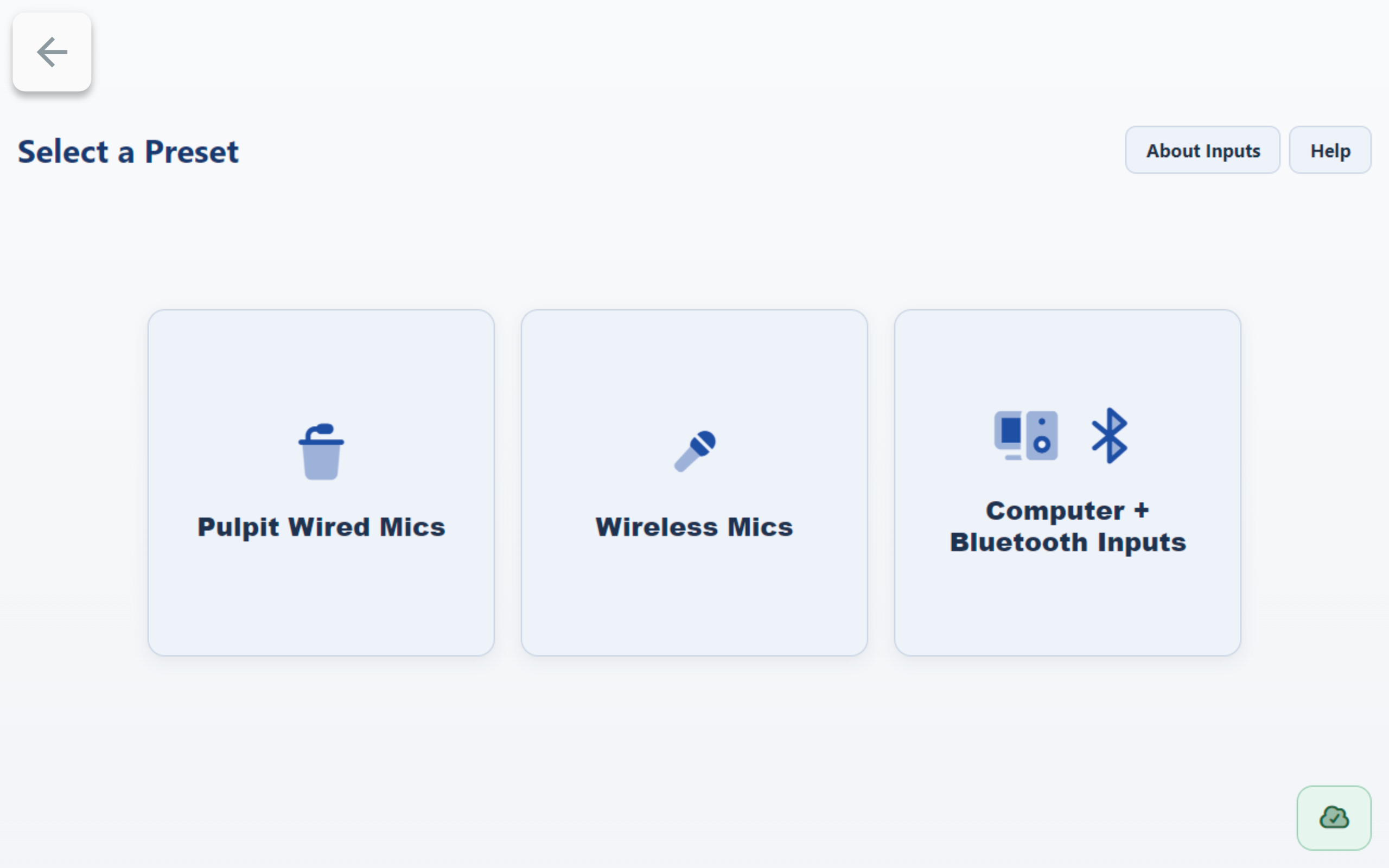
Use the Computer Input Channel
- In
Computer + Bluetooth Inputs, find theComputerchannel card. - If the channel shows
Mutedin red, press it once to unmute. - Start playback on your computer.
- Adjust the
Computerlevel using+1%,-1%, or the slider.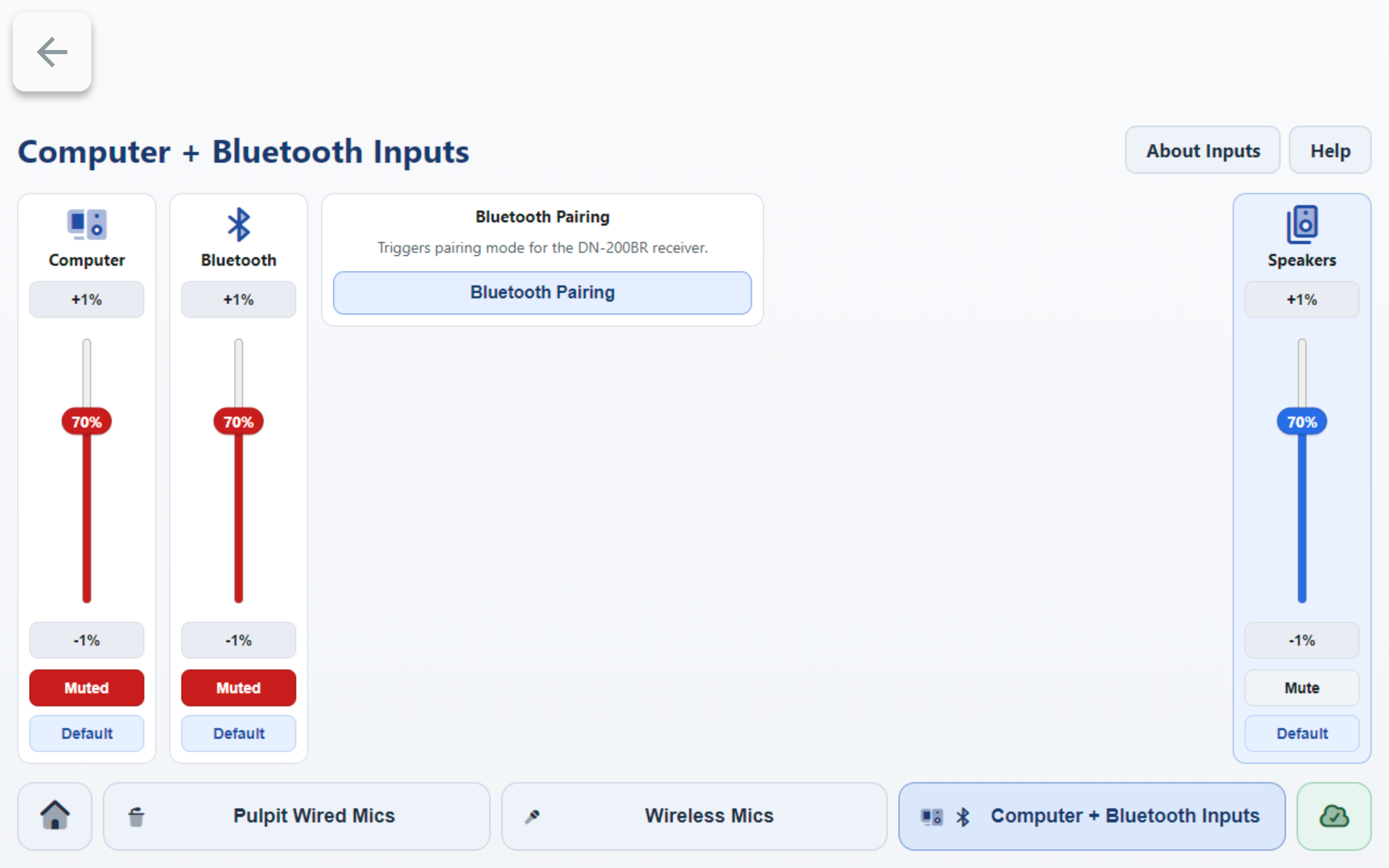
Helpful On-Screen References
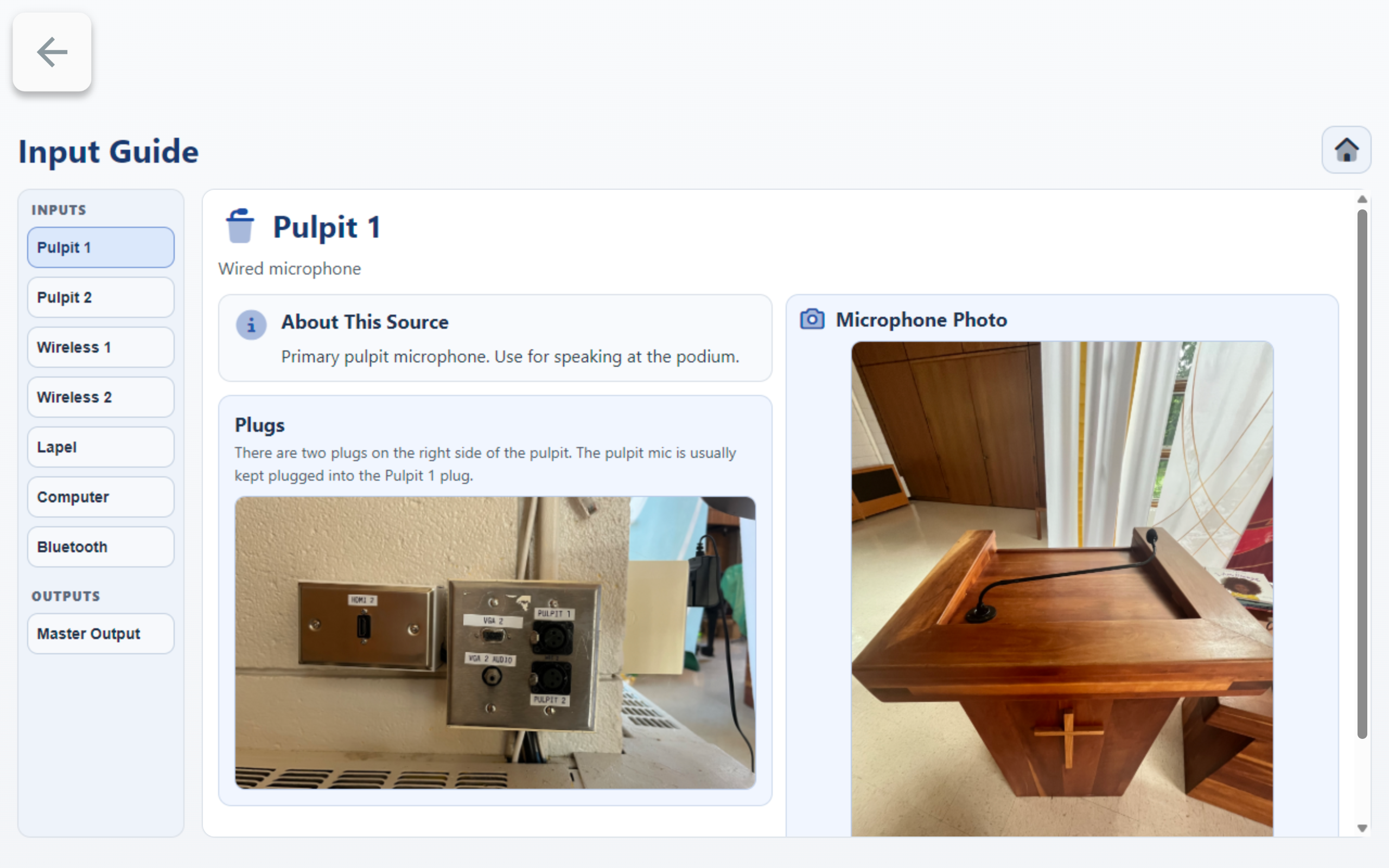
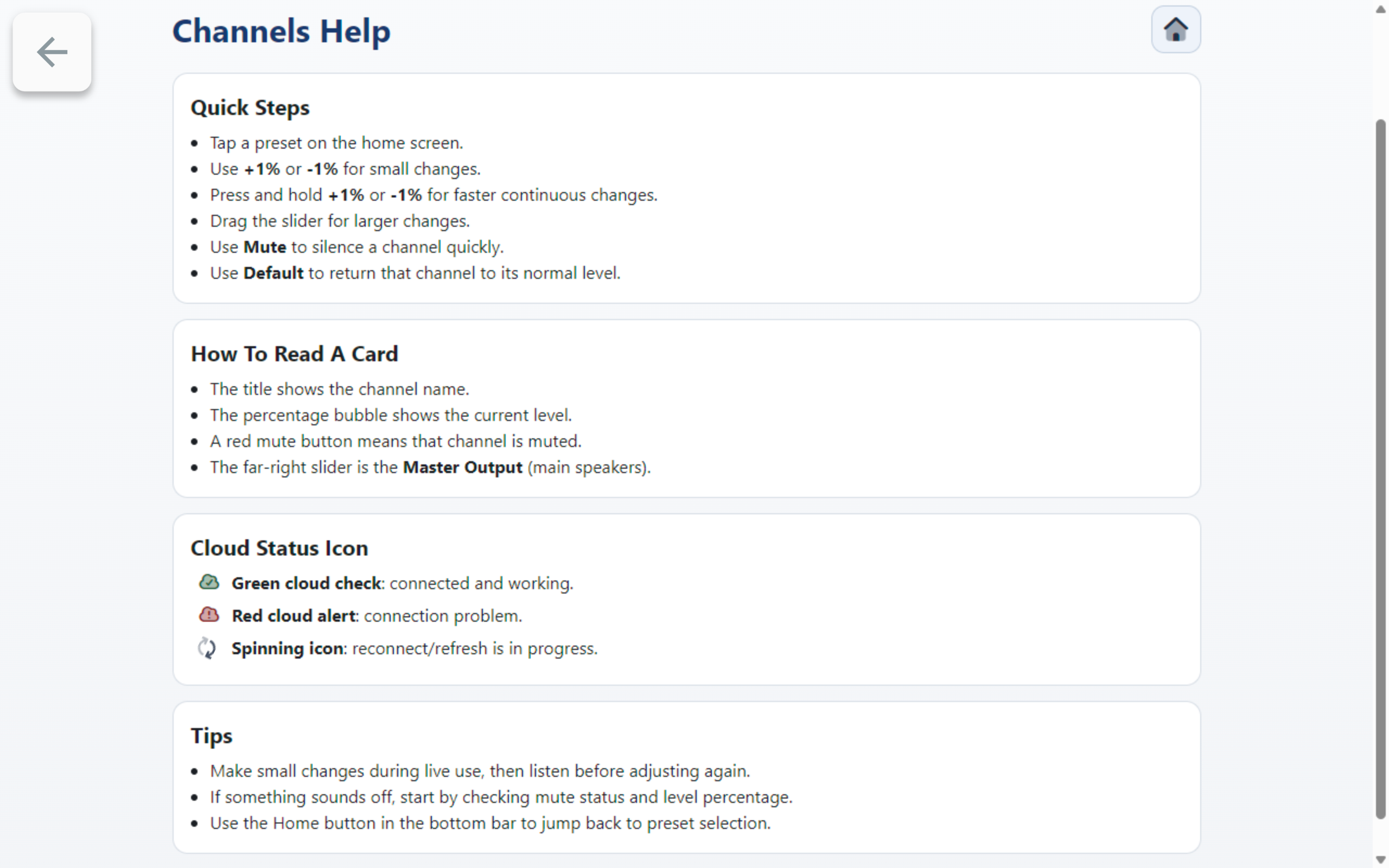
- Press
About Inputsfor source and connection reference details. - Press
Helpfor quick control tips (+1%,-1%, hold to ramp, Mute/Unmute, and Default level behavior).
If You Do Not Hear Computer Audio
- Make sure the computer is actually playing sound.
- Turn up the computer volume.
- If using HDMI, confirm the computer selected the HDMI/display audio output.
- If using VGA, confirm the 3.5mm audio cable is connected.
- Confirm the
Computerchannel is unmuted in theComputer + Bluetooth Inputspreset. - Confirm
Master Outputis high enough for the room.